While changing a style attribute, you may mistakenly have changed it at the wrong style level.
There are several ways to correct a wrong style attribute.
Let's start with an example:
We will assume that I assigned a background image to a song verse instead of to the (whole) song.
There are several ways to correct a wrong style attribute.
Let's start with an example:
We will assume that I assigned a background image to a song verse instead of to the (whole) song.
Method 1 - Use style level badges
Press the green bullet, to activate the display of style level badges:
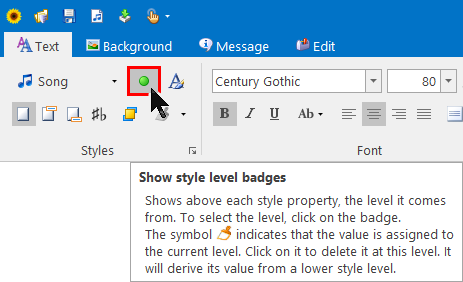
This displays “Badges” above the style attributes:

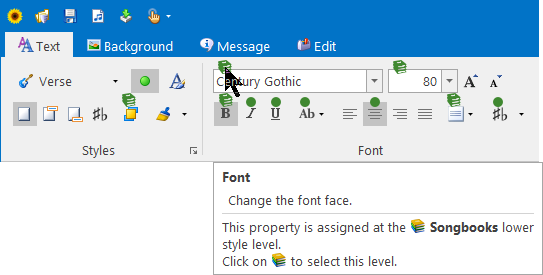
- A “Style level” badge (green) indicates the level where the style attribute is positioned.
Click on a badge to easily select its style level.
In the screenshot below, the font is set to “Century Gothic”, at the “Songbooks” style level.
Click on the green "Songbooks" badge to easily select the “Songbooks” style level:
Click on a badge to easily select its style level.
In the screenshot below, the font is set to “Century Gothic”, at the “Songbooks” style level.
Click on the green "Songbooks" badge to easily select the “Songbooks” style level:
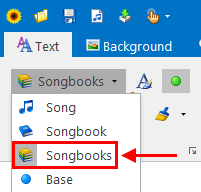
It has the same effect as manually selecting the corresponding style level in the style level drop-down:
- A “Brush” badge (orange) indicates that the attribute is positioned at the current style level (in this case “Verse”).
Click the “Brush” badge to remove the “Background image” attribute at that “Verse” level:
Click the “Brush” badge to remove the “Background image” attribute at that “Verse” level:
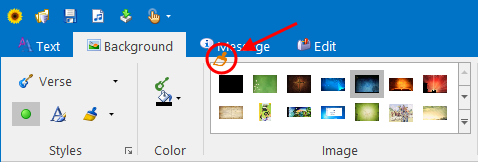
The song verse will then be displayed with the image defined at a lower style level (at the “Song” level, or lower).
Method 2 - Use the style level brush
The style level brush clears the style attributes set at the current level:
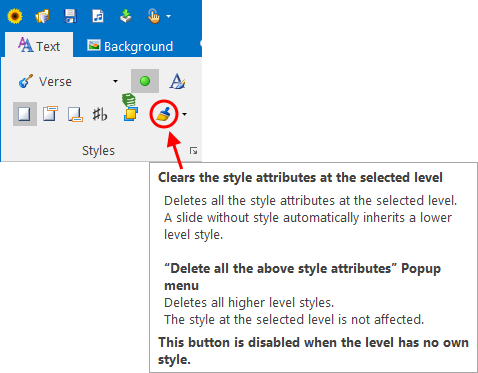
This action will have the same result as pressing all the orange brushes displayed on top of the style attributes in the ribbon.
Method 3 - Use the style level brush sub-menu
In the case we are considering, where we need to remove an image assigned by mistake to a song verse, we could do the following:
1. Select the “Song” style level.
2. Press the “Delete all the above style attributes”.
This will delete all the song verses style attributes (of all song verses):
1. Select the “Song” style level.
2. Press the “Delete all the above style attributes”.
This will delete all the song verses style attributes (of all song verses):
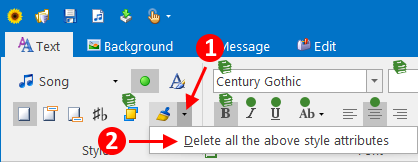
Note This will not only clear the background image of the song verse that we are considering, but also the attributes that may be set to other song verses.
Hierarchical styles:
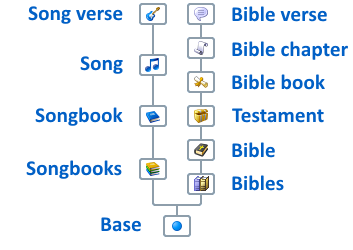
Method 4 - Use the style explorer
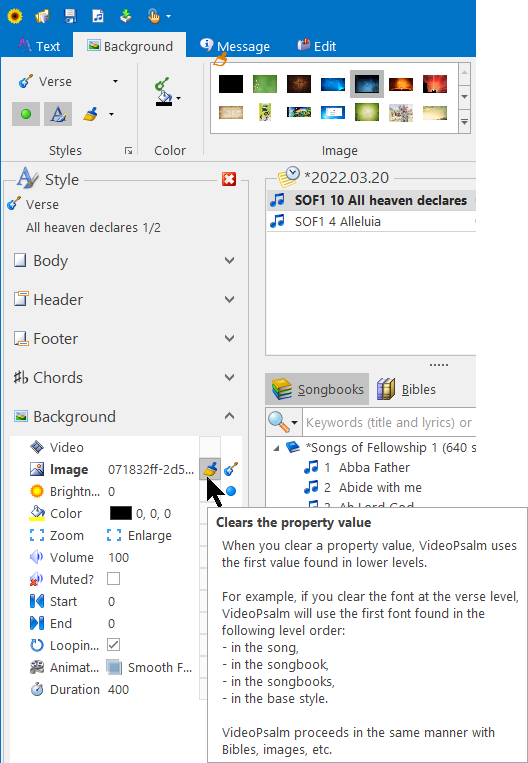
The style explorer is a panel enabling you to see what attribute is set at what level.
To open the style explorer, press the highlighted button:
To open the style explorer, press the highlighted button:
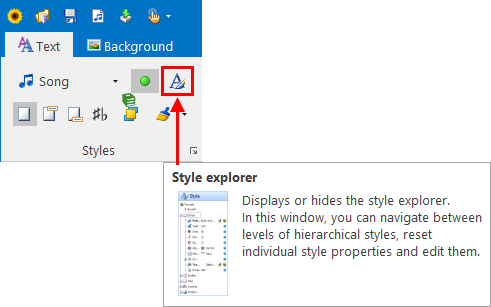
This opens the style explorer, where you can selectively clear each attribute at the right level:
Method 5 - Selectively save your changes
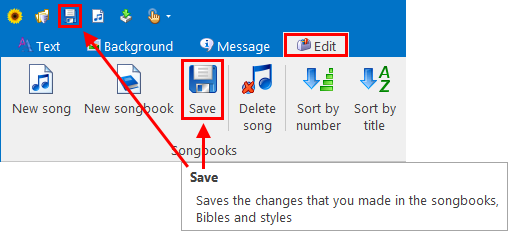
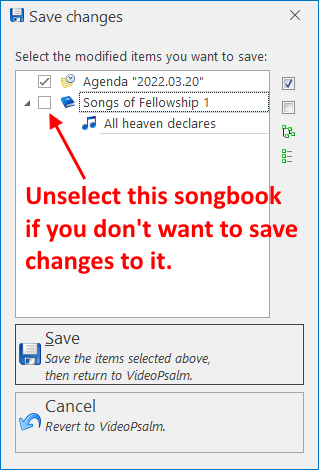
When you press the “Save” button, VideoPsalm lists all changes that will be saved, and gives you the opportunity to select what items to save:
Method 6 - Close VideoPsalm without saving
In the worst case, close VideoPsalm without saving your changes, then restart it.
This method is not very practical and should be used as a last resort.
This method is not very practical and should be used as a last resort.
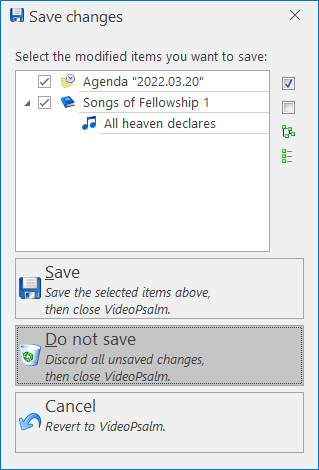
Note In the screenshot on top, the changes done to the agenda will not be saved either.
You may want to operate in two steps:
1. Save the agenda, without saving the songbook.
2. Close VideoPsalm without saving.
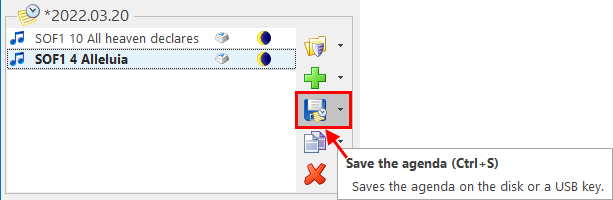
Alternatively, before closing VideoPsalm, save the agenda through its specific “Save” button:
You may want to operate in two steps:
1. Save the agenda, without saving the songbook.
2. Close VideoPsalm without saving.
Alternatively, before closing VideoPsalm, save the agenda through its specific “Save” button:
 RSS Feed
